





MiLi MiBook Pro
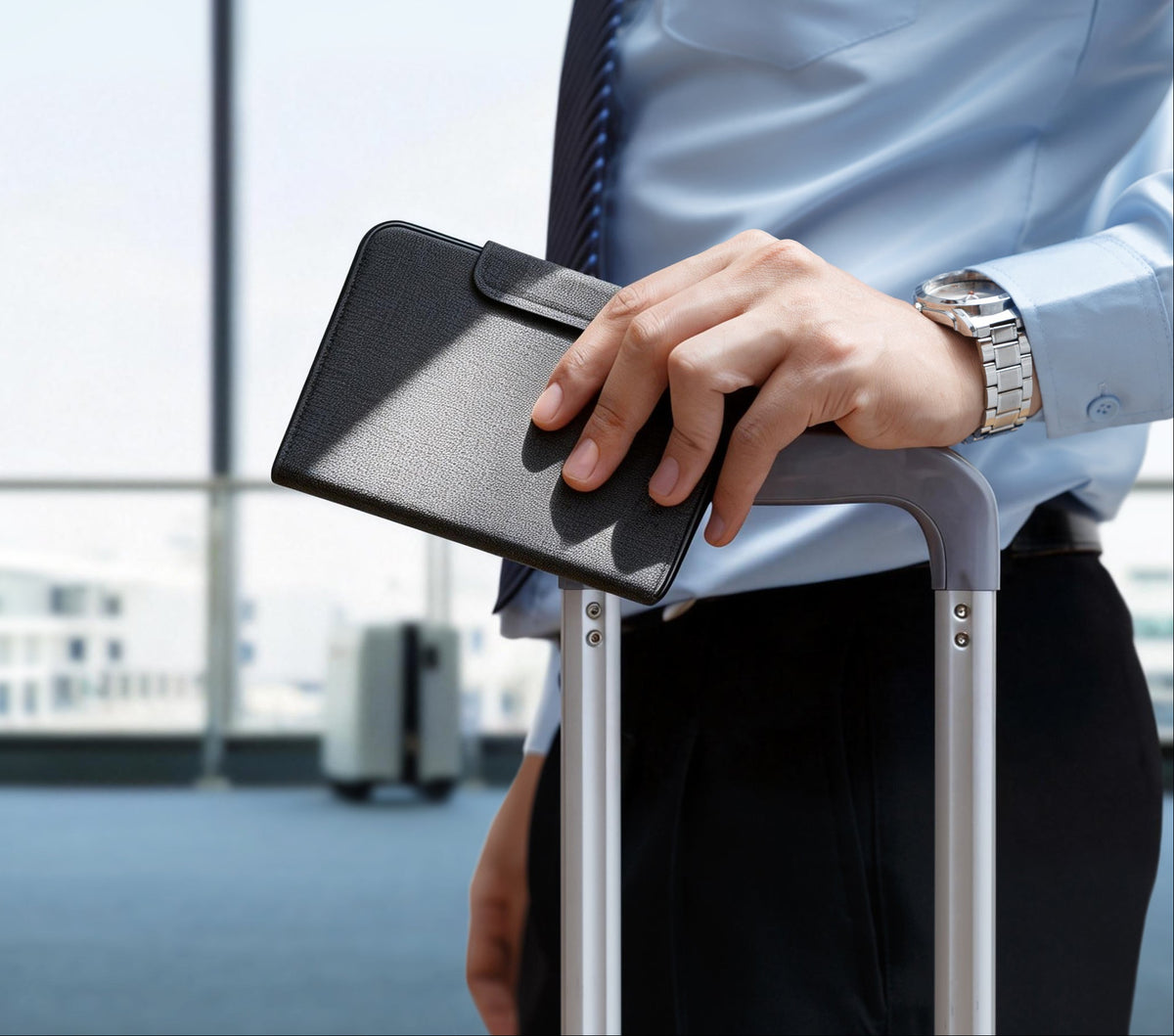
Track your passport from your phone


Smart tracking and anti-loss solutions designed for your daily essentials.



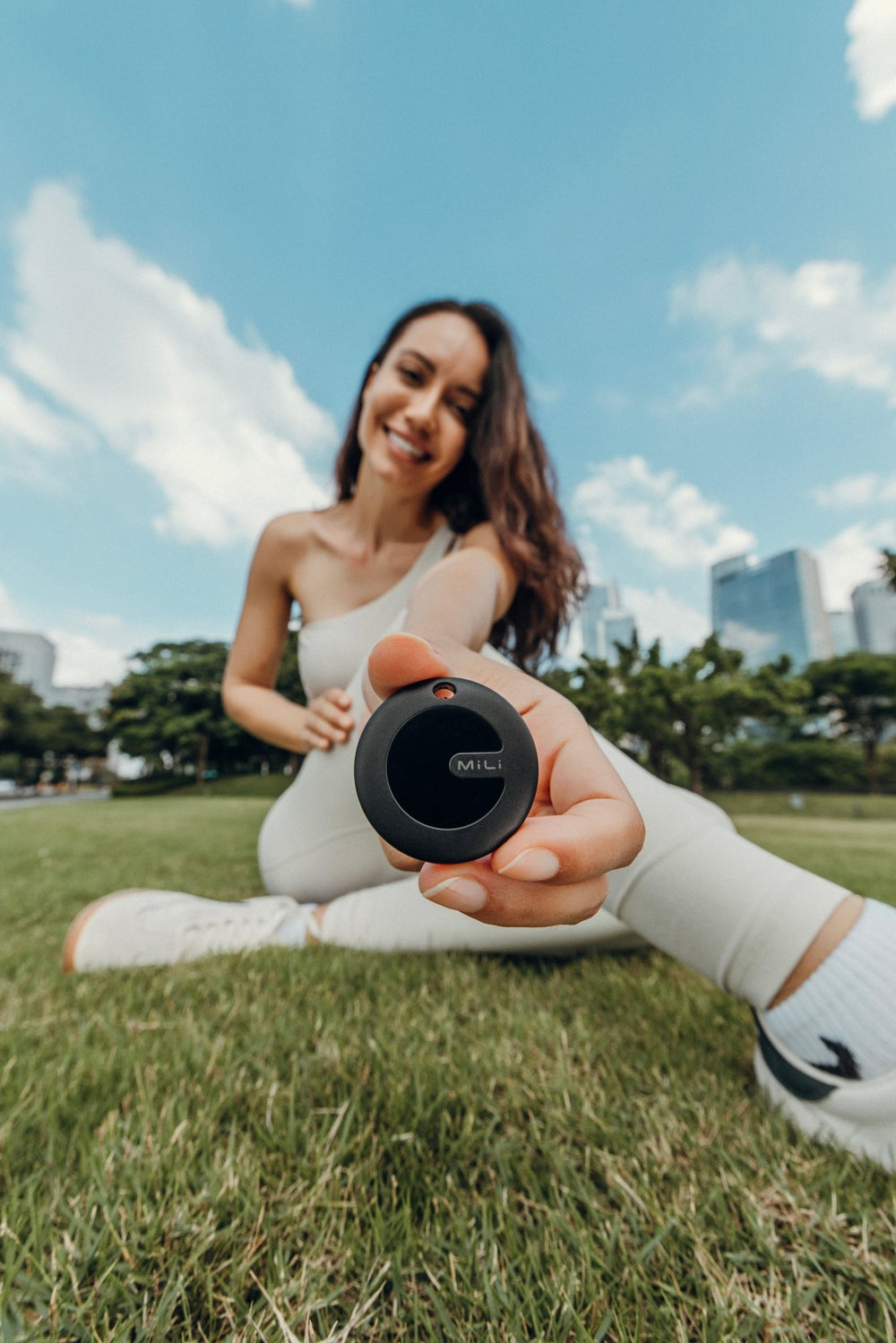
 MiTag Duo |
 LiTag Duo |
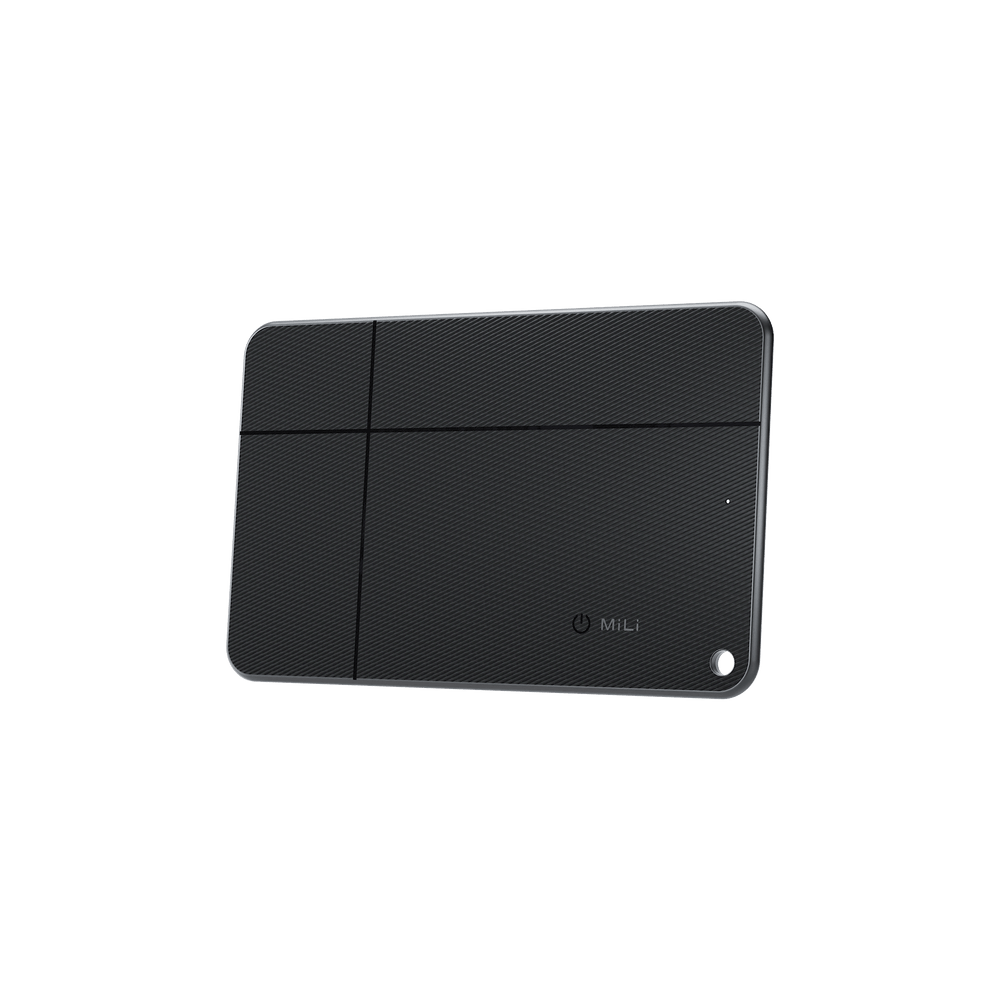 MiCard Duo |
|---|---|---|
| Apple Find My/Google Find Hub compatibility | ||
|
|
|
|
| Colors | ||
|
Black/White
|
Black
|
Black
|
| Size | ||
|
38mm * 38mm * 9mm
|
32mm * 32mm * 8.2mm
|
80mm * 50mm * 2.5mm
|
| Sound volume | ||
|
~ 85 dB
|
~ 85 dB
|
~ 90 dB
|
| Bluetooth range | ||
|
~ 50 m(165 ft)
|
~ 50 m(165 ft)
|
~ 50 m(165 ft)
|
| Battery type | ||
|
Replaceable battery
|
Replaceable battery
|
Wireless Charging
|
| Battery life | ||
|
~ 8 m
|
~ 8 m
|
~ 8 m
|

Check the map to view your item’s last known location, helping you retrace your steps and recover lost belongings more easily.

Play a sound to quickly locate misplaced items hiding nearby — under cushions, inside bags, or around the house.

Use guided directions to walk straight to nearby belongings instead of searching room by room.



















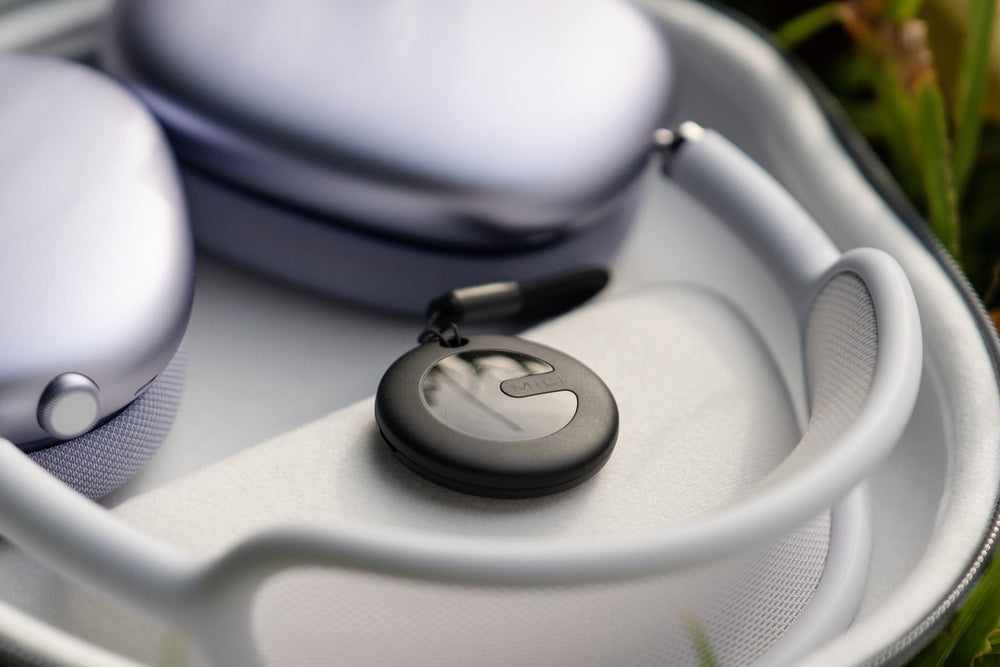
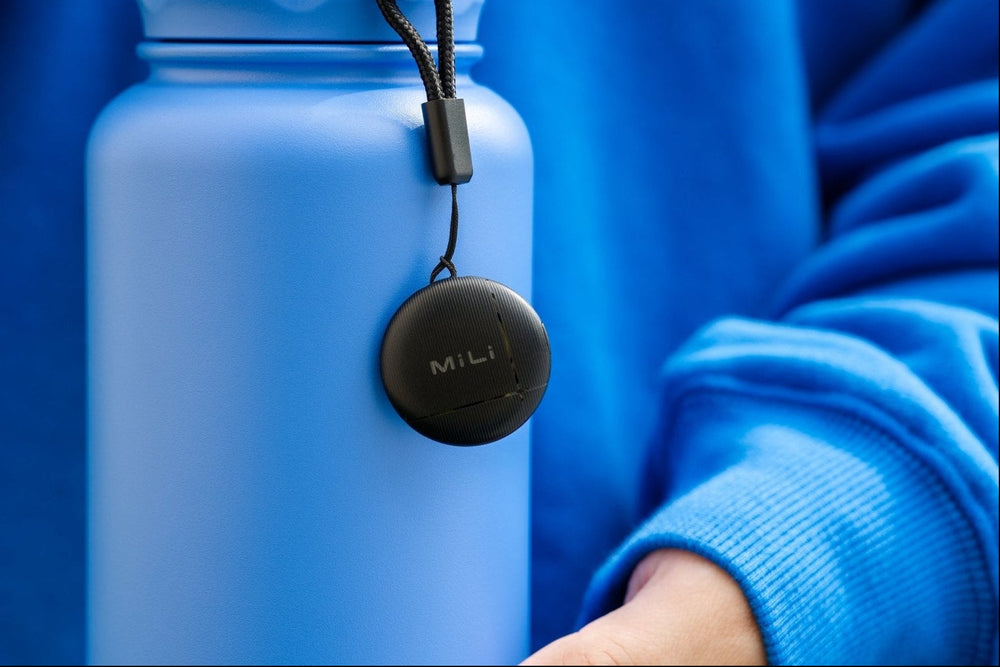

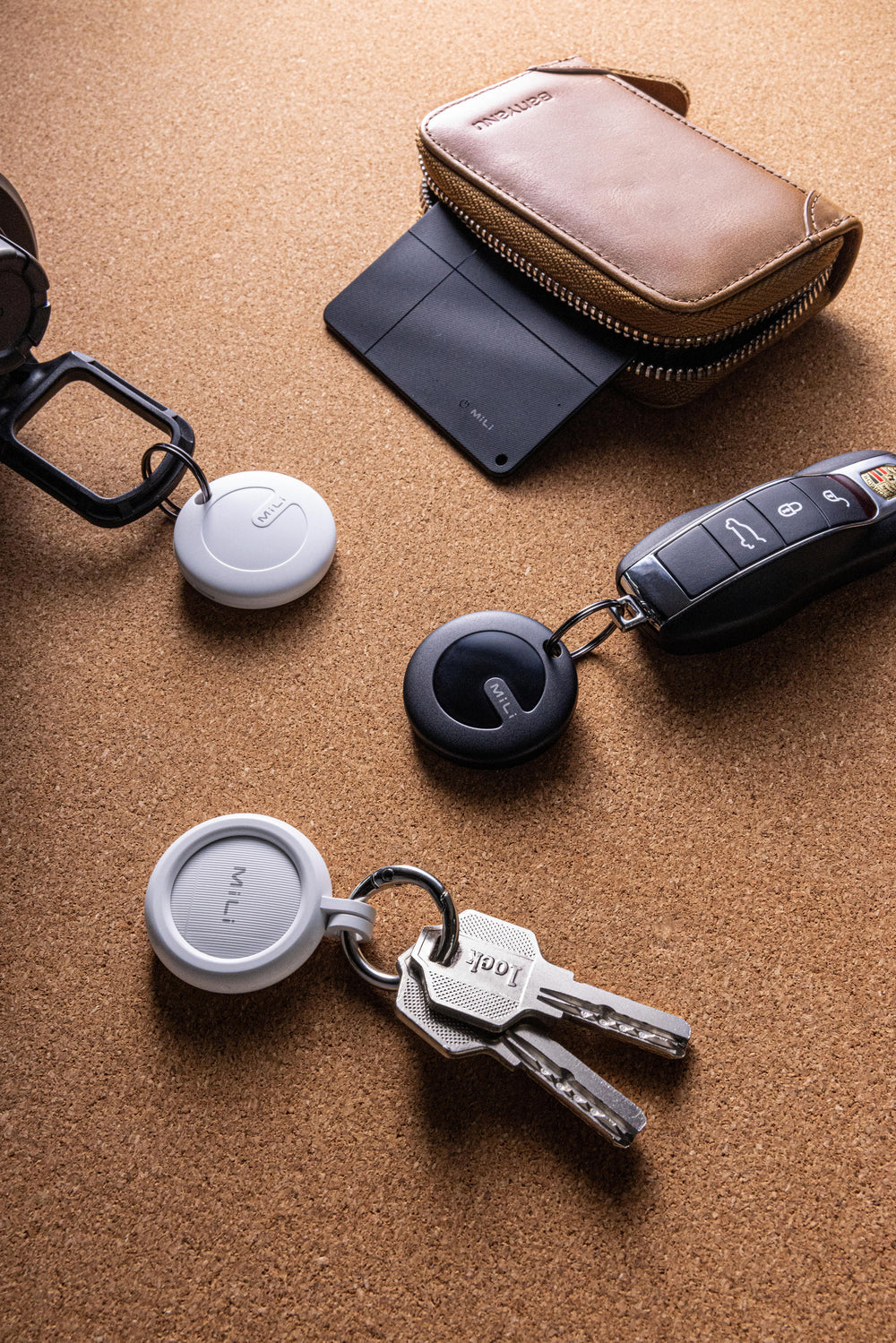




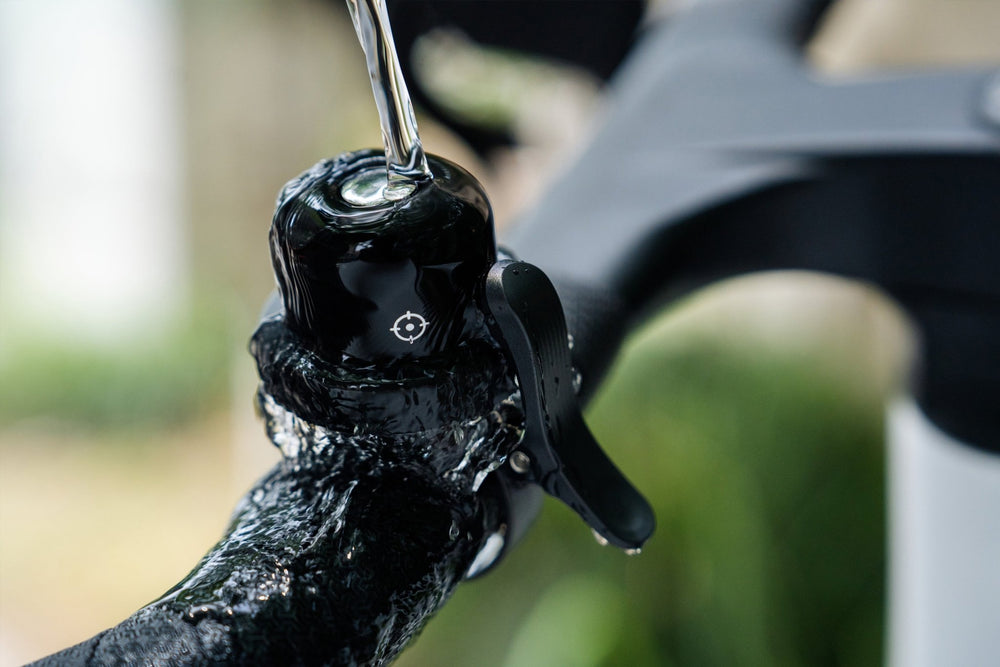
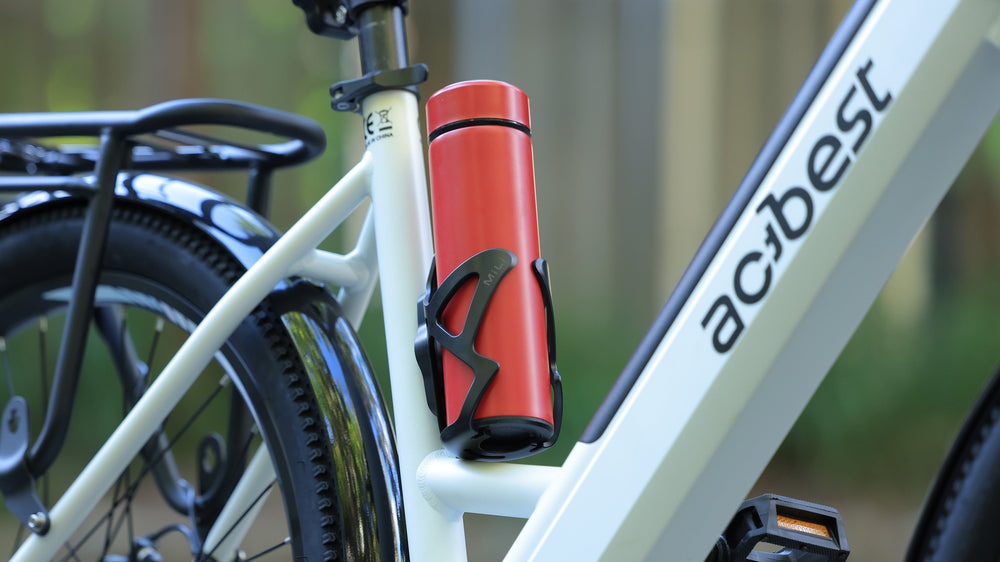

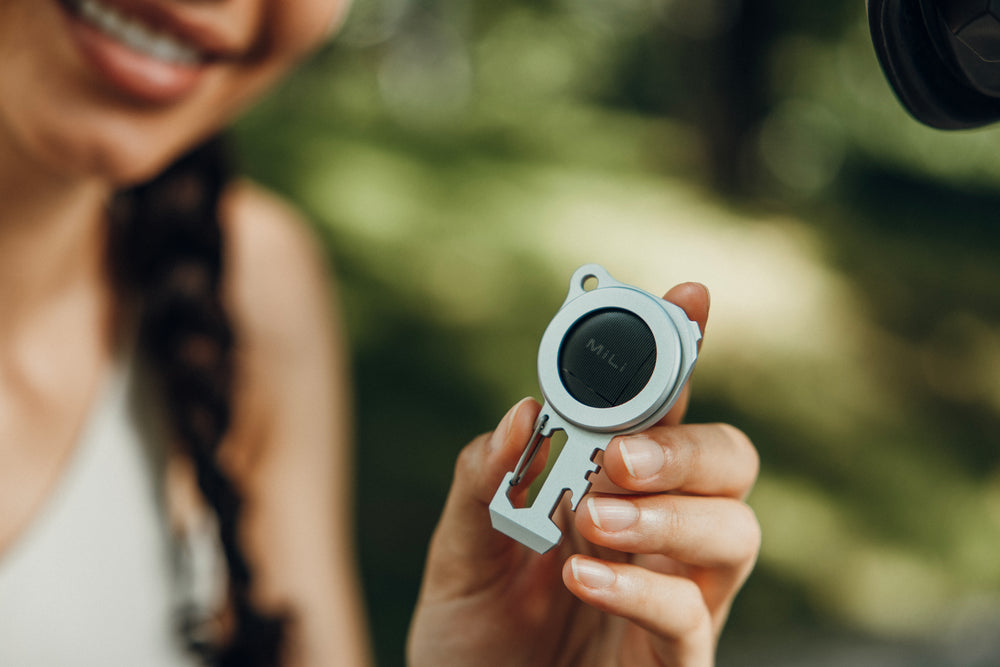
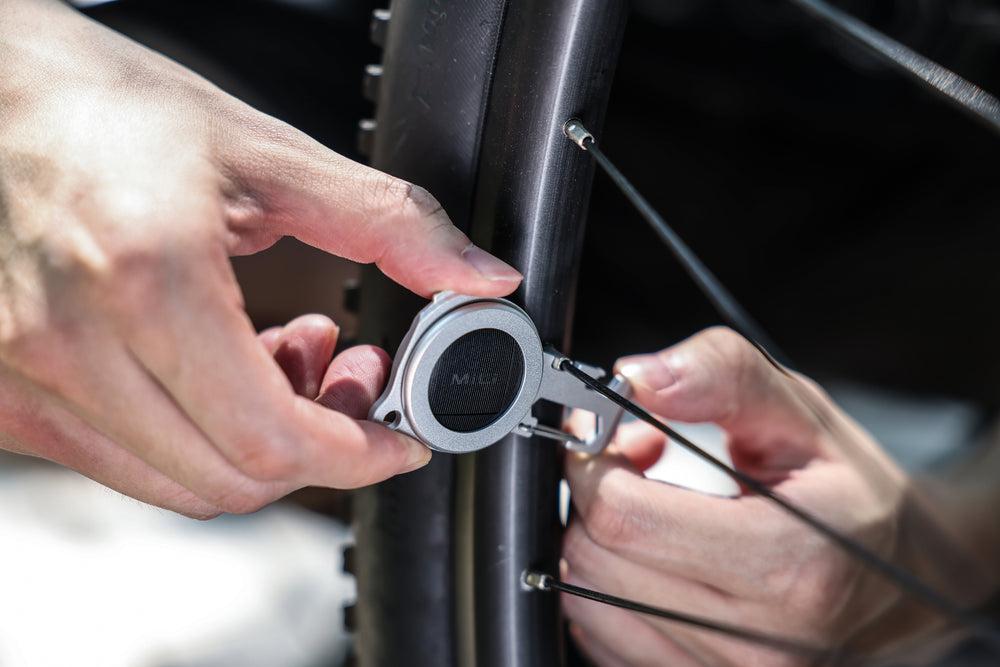
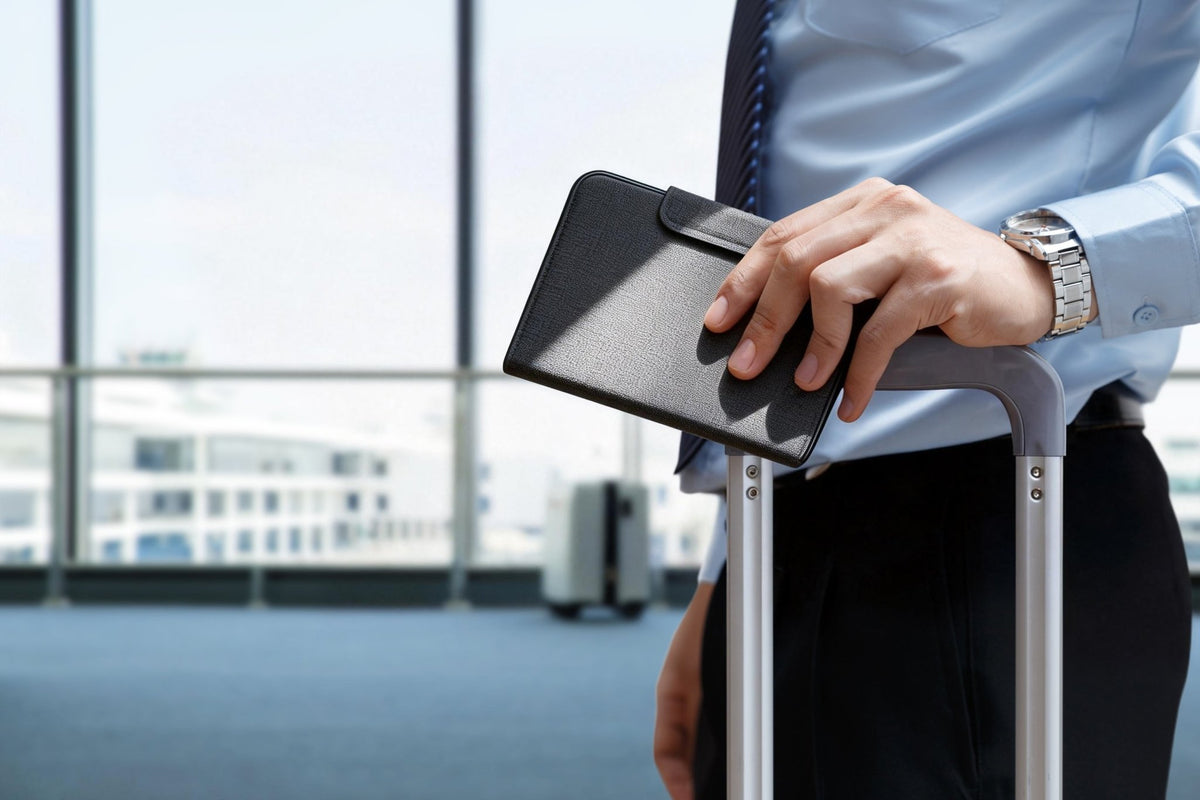
Your Passport. Your Journey. Peace of Mind.
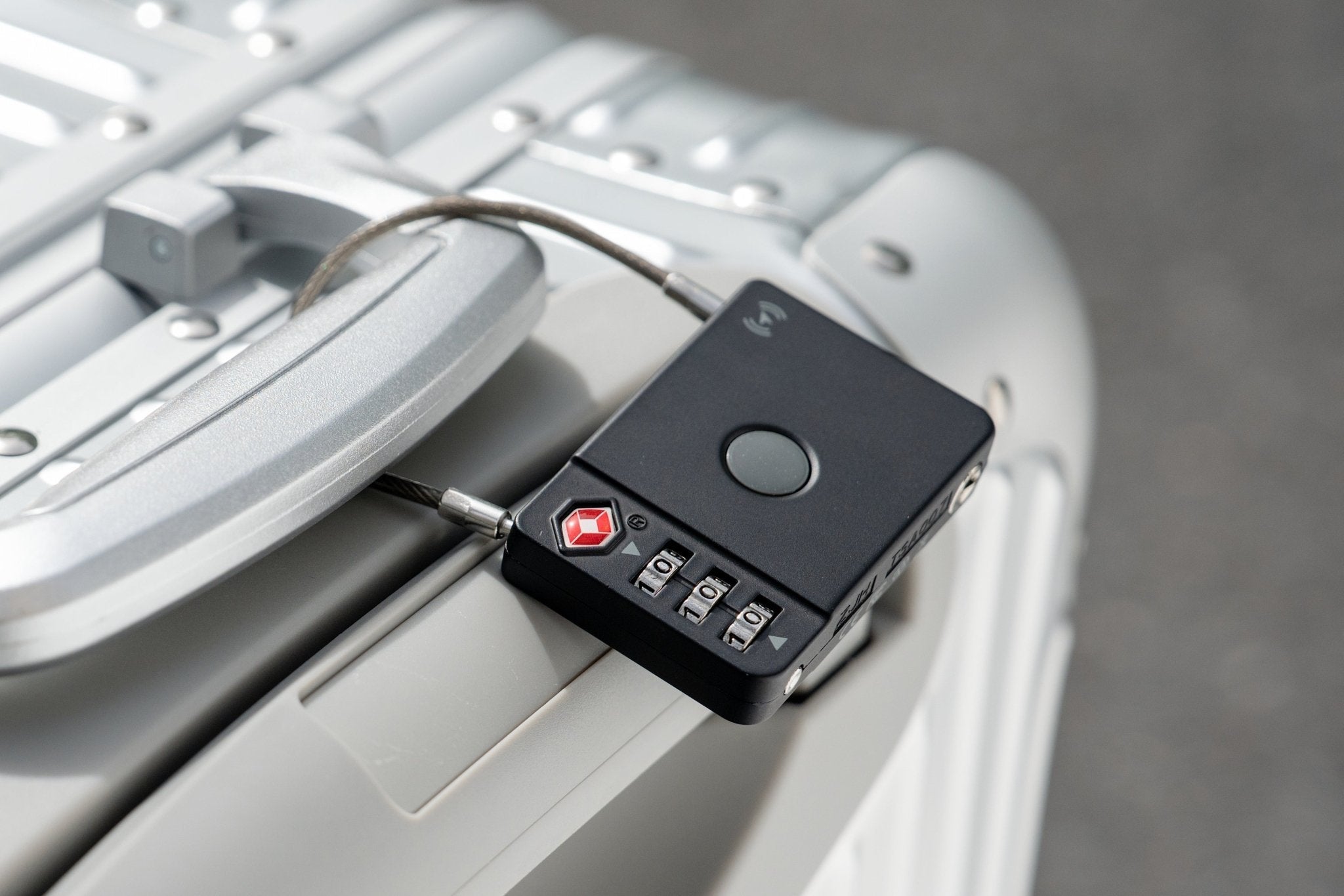
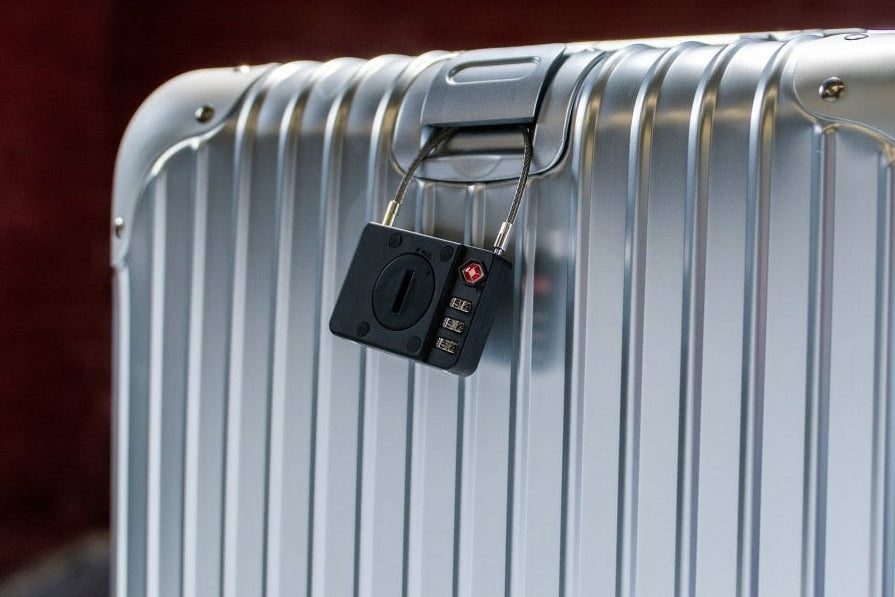
A Travel Lock with Discreet Tracking
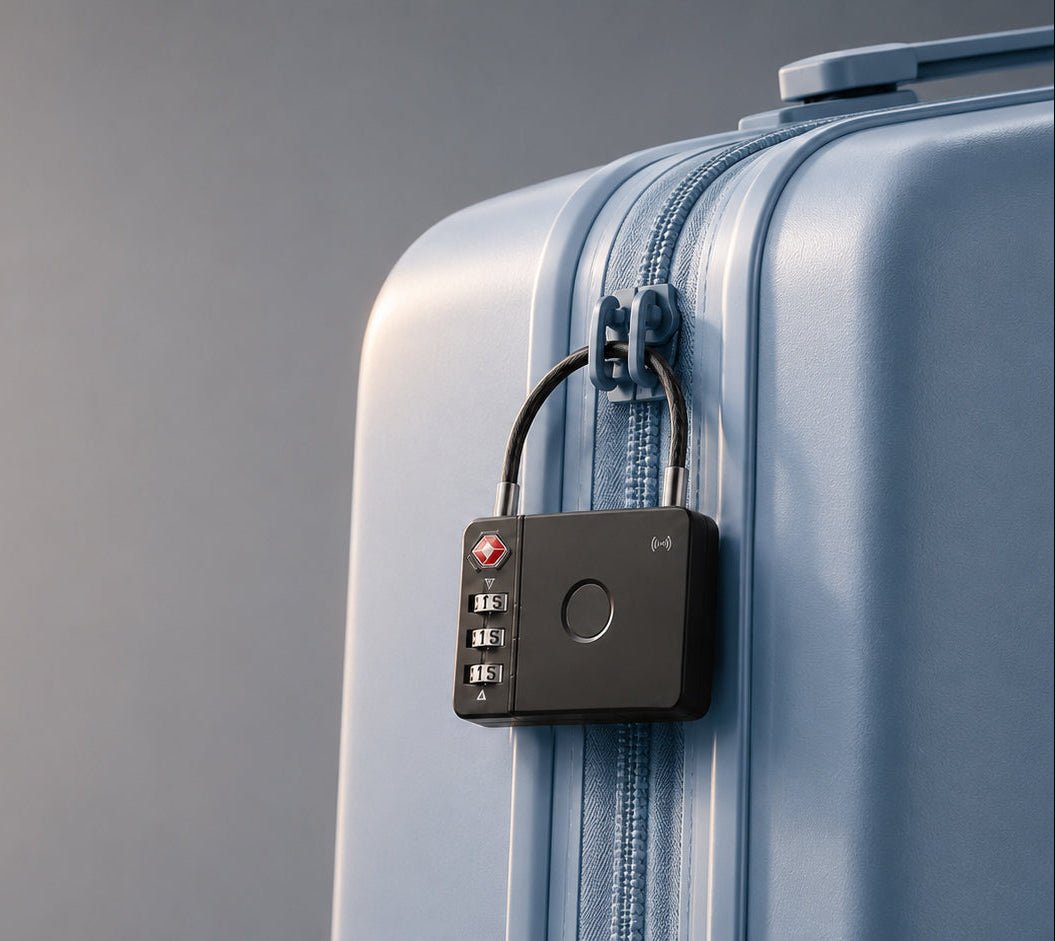
Keep Your Luggage Safe & Trackable
Please verify that the necessary permissions are enabled:
✅ Bluetooth: ON ✅ Location: ON ✅ Google Find Hub: ON
Android Navigation Path: Settings →Google →Find My Device
Verify the following settings:
Find My Device = ON
Find offline devices = ON
STEP 2
Disable battery optimization restrictions (which can limit Google services).
Instruct to check: Settings →Battery →Battery optimization
Set the following apps to: Google Play Services→Find Hub→Bluetooth→Setting→Unrestricted
STEP 3
Restart Bluetooth.
Do not simply toggle it off and on immediately.
Instead, follow these steps:
Turn Bluetooth OFF
Wait 15 seconds
Turn Bluetooth ON
Restart Find Hub
STEP 4
Place the tag in very close proximity to the phone (if the distance is too great).
A distance of 5–10 cm is required.
STEP 5
Reset Network Settings.
Remove the battery.
Wait 1 minute.
Press the button several times to discharge any residual power.
Insert a new battery.
Turn on the device.
Press the button 6 times quickly.
On the 6th press, hold the button down (long press).
Android: Settings → System → Reset options → Reset Wi-Fi, mobile & Bluetooth
Please follow the steps below carefully to fully refresh both the phone and the tag connection:
1. Remove the device from Find Hub / Find My Device completely. After removing it, please wait 1–2 minutes before trying to pair again.
2. Restart your phone: This is important because Android Bluetooth services can sometimes become stuck after a previous pairing.
3. Reset Network Settings on your phone (very important). Please go to:Settings → System → Reset Options → Reset Wi-Fi, Mobile & Bluetooth
This will remove saved Wi-Fi and Bluetooth connections, but will NOT delete your photos or personal data.
4. Replace the battery with a brand-new CR2032 battery. Even if the current battery still appears to have power, low voltage can prevent the tag from entering pairing mode correctly.
5. Perform the reset again carefully
Please follow these exact steps:
* Remove the battery
* Wait 1 minute
* Press the button several times while the battery is removed
* Insert the new battery
* Press the button 6 times quickly (within about 2–3 seconds)
* On the 6th press, hold the button for 5–10 seconds
6. Confirm whether you hear the reset sound,This is the most important step.
* If you hear a longer reset tone: the tag successfully entered pairing mode.
* If you only hear short sounds or no sound at all: the reset likely did not complete successfully.
7. Bring the tag very close to the phone. Please keep the tag within 5–10 cm of the phone and wait about 1 minute for the pairing popup to appear.
* The device is not fully connected through Bluetooth
* The speaker/buzzer is not responding correctly
* The battery voltage is unstable
* The phone and Find Hub connection did not refresh properly
Please try the following steps carefully:
1. Move the device very close to your phone. Please keep the tag within 5–10 cm of the phone when testing “Play Sound.”
2. Restart Bluetooth on your phone
* Turn Bluetooth OFF
* Wait 10–15 seconds
* Turn Bluetooth ON again
* Reopen Find Hub / Find My Device
3. Replace the battery (for MiTag models). Even if the battery still appears to work, low voltage can sometimes allow pairing but prevent the speaker from functioning correctly. We recommend using a new branded CR2032 battery
4. Test whether the device makes startup or shutdown sounds,Please check:
* Does the tag make a sound when powering ON?
* Does it make a sound during reset?
This is very important for diagnosis.
5. Reset the device,Please:
* Remove the battery
* Wait 1 minute
* Insert the battery again
* Press the button 6 times quickly
* Hold the 6th press for 5–10 seconds
6. Try “Play Sound” again after reconnecting,If:
* the device connects normally
* the blue light flashes
* but there is still absolutely no sound,
then the internal speaker/buzzer may not be functioning correctly.
If poor contact is caused by a loose internal connection, try gently pressing the center of the card or device, or applying a very slight flex; this can sometimes restore the speaker's connection.
After replacing the battery, the product defaults to standby mode.
1.Press and hold the power button to turn it off
2.Press the power button once to turn it on
3.Press the button six times quickly to reset
* connecting normally
* showing location correctly
* and responding in the app
but has suddenly stopped producing any sound, this usually means the Bluetooth and tracking functions are still working correctly, while the sound function itself may not be responding properly.
Please try the following steps:
1. Fully charge the MiCard. Please place the card on a compatible flat Qi wireless charger and leave it charging undisturbed for at least 2 hours Or even longer time.
2. Restart the MiCard,After charging:
* Turn the card OFF
* Wait about 30 seconds
* Turn it ON again
3. Test startup/shutdown sounds,Please check whether the card produces any sound during:
* power ON
* power OFF
* or “Play Sound” in Find Hub
4. Reconnect the device,If needed:
* Remove the card from Find Hub
* Reset the MiCard
* Pair it again with your phone
5. Gentle pressure test (optional). While triggering “Play Sound,” gently press the center of the card or very lightly flex it.
This behavior is related to the built-in anti-tracking safety features from Apple Find My or Google Find Hub systems.
This is a normal safety function designed to prevent unwanted tracking.
The battery if the device has been used for a long time, as unstable battery voltage can occasionally trigger abnormal behavior
At the moment, the anti-tracking alert sound cannot be completely disabled because it is part of Apple / Google safety requirements.
1. Use a compatible Qi wireless charger. MiCard requires a standard Qi wireless charging pad. We recommend using a simple flat Qi charging pad (5W–10W).
2. Reposition the MiCard slowly on the charger,Because the charging coil inside the card is small, positioning is very important.
Please:
* place the card flat
* slowly move it around the center area
* and look for a stable charging indicator light
3. Leave the card charging undisturbed for at least 2 hours. Even if the light appears normal, the card may require time to recover from deep discharge.
4. Test after charging,After charging:
* remove the card
* wait 1 minute
* then try turning it ON and using “Play Sound.”


